
Platform SSO Simplified Setup with Okta: Fixing the associatedDomains=(null) Registration Failure
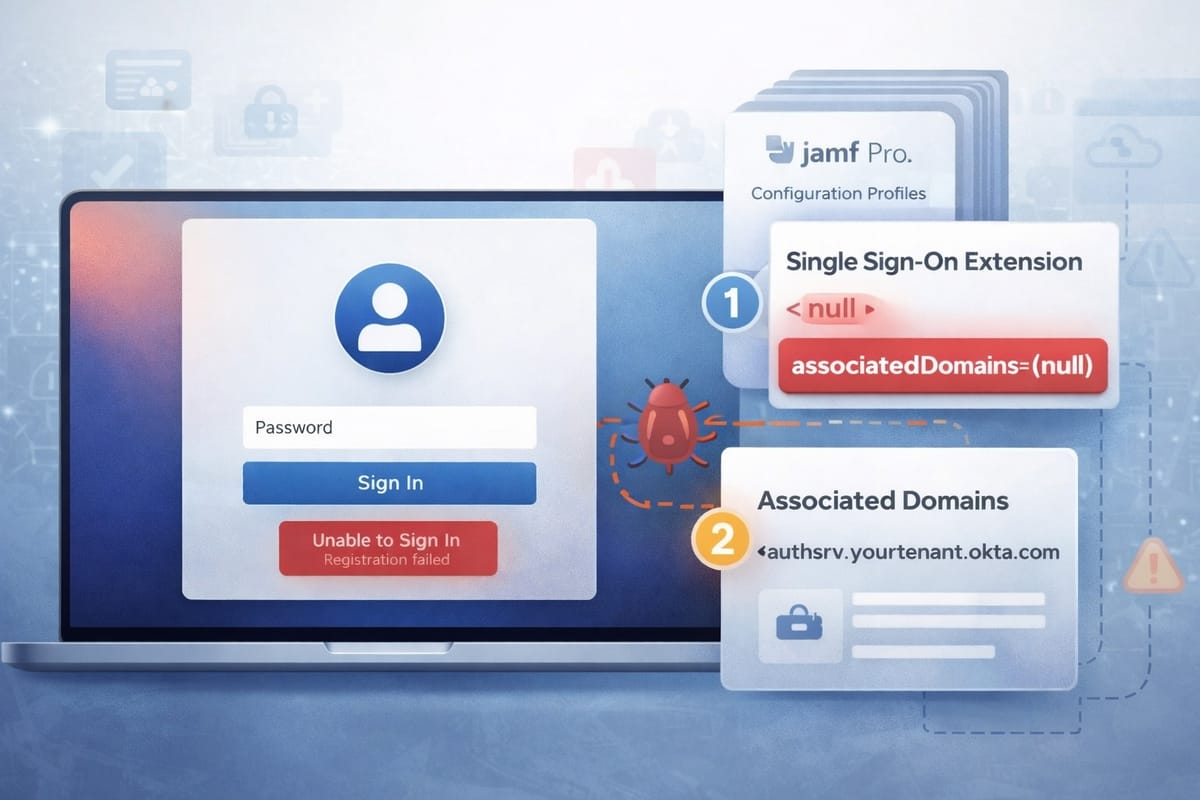
Platform SSO Simplified Setup in macOS 26 moves IdP registration into Setup Assistant. Users authenticate with Okta before reaching the desktop. The Mac creates the first local account from IdP credentials. No banner notifications, no user action after the initial sign-in.
If you have read my previous article on Platform SSO pain points, you know the banner-based registration flow in macOS 15 and earlier depends on user action. Users ignore banners. Help desk tickets follow. Simplified Setup eliminates that friction by making registration mandatory before the user reaches the desktop.
Getting there requires three things installed during enrollment: a SCEP certificate from Okta Device Access, a Single Sign-On Extension profile configuring the Okta Verify SSO extension, and an Associated Domains profile mapping your Okta tenant to that extension. All three must be present and functional before macOS attempts Platform SSO registration in Setup Assistant.
When the configuration is correct and the timing works, the experience is clean. The device enrolls through Automated Device Enrollment. Jamf Pro holds the device in Setup Assistant until Okta Verify and the configuration profiles install. macOS presents the Okta login screen. The user authenticates. Platform SSO registers the device and user. The first local account is created from IdP attributes. The user lands on the desktop with a working SSO session.
When it breaks, you see this:
Unable to Sign In — Registration failed.
The SSO extension loads. Okta Verify installs. The Okta login screen appears in Setup Assistant. The user enters credentials and clicks Sign In. Registration fails.
Confirming the Problem
The AppSSO subsystem logs tell you what happened. Run this on the device (or connect via SSH during Setup Assistant if you have that configured):
log show --predicate 'subsystem == "com.apple.AppSSO"' --last 5m
In the output, look for the SSO extension loading sequence. You will see extension discovery, the attempt to validate the domain, and then the failure. The critical line shows associatedDomains=(null).
This means the SSO extension loaded and attempted to validate its relationship with your Okta tenant domain. macOS checked for a domain association and found none. Without a valid domain association, the extension cannot prove it is authorized to handle authentication for that domain. Registration fails.
The configuration may be correct. The Associated Domains profile may contain the right app identifiers and the right domain. The SSO Extension profile may have every setting configured properly. The failure is not in what you configured. It is in when macOS processes each payload.
How Associated Domains and SSO Extensions Work Together
Understanding why this fails requires understanding how these two payloads interact.
The SSO Extension payload (com.apple.extensible-sso) tells macOS about the authentication extension. It registers Okta Verify's SSO extension with the system. macOS now knows an extension exists with a specific Extension Identifier (com.okta.mobile.auth-service-extension) from a specific Team Identifier (B7F62B65BN) that can handle authentication for specific URLs.
The Associated Domains payload (com.apple.associated-domains) tells macOS which app identifiers are authorized to act as authentication services for which domains. It maps B7F62B65BN.com.okta.mobile.auth-service-extension to authsrv:yourtenant.okta.com. This is how macOS knows the Okta Verify extension is allowed to handle authentication for your specific Okta tenant.
Both payloads must be present for Platform SSO to function. The extension needs to exist before the domain association can resolve. First macOS registers the extension, then macOS validates that the extension has permission to handle authentication for the claimed domain.
When macOS processes the Associated Domains payload, it looks for a registered extension matching the app identifier. If the extension is not yet registered because the SSO Extension payload has not been processed, the domain association has nothing to attach to. macOS discards it. When the SSO Extension payload arrives and the extension registers, macOS does not retroactively re-evaluate previously discarded domain associations.
The result: associatedDomains=(null).
Why Payload Ordering Matters During Setup Assistant
On a device that has already completed enrollment and is sitting on the desktop, this timing issue rarely surfaces. Profiles install, the system processes them, and if there is a brief ordering issue the system typically resolves it on the next evaluation cycle.
During Setup Assistant, the timing is tighter. macOS is installing profiles, installing packages, and attempting Platform SSO registration in a compressed sequence. The device has just enrolled. Profiles arrive and are processed in the order they appear in the profile XML. If the Associated Domains payload has a lower index number in the XML (meaning it appears earlier in the file) than the SSO Extension payload, macOS processes it first. The extension does not exist yet. The domain association fails.
Jamf Pro generates the profile XML based on the order payloads are added to the configuration profile. This is the root of the problem. If you add the Associated Domains payload before the SSO Extension payload, or add both at the same time, Jamf Pro may serialize the Associated Domains payload with a lower index. During Setup Assistant, this means it processes first, before the extension it references exists.
The Fix
Dr. Emily Kausalik-Wood documented this at JNUC 2025 during her session "In the Trenches with Platform SSO, Okta, Connect, and Network Relay at Jamf." Her workaround addresses the ordering problem.
In Jamf Pro:
- Create the configuration profile with only the SSO Extension payload. Save it.
- Edit that same profile. Add the Associated Domains payload. Save it again.
This forces the SSO Extension payload to have a lower index in the profile XML than the Associated Domains payload. When macOS processes the profile during Setup Assistant, the extension registers first. Then the domain association resolves against an extension that already exists.
The reason this works is specific to Jamf Pro's profile builder behavior. Saving the SSO Extension payload first gives it the lower index in the XML. Adding the Associated Domains payload in a subsequent edit places it after the SSO Extension in the serialized output. The profile XML preserves this ordering, and macOS respects it during installation.
Creating both payloads at the same time, or adding Associated Domains first, can produce the wrong order. You cannot reorder payloads within a profile through the Jamf Pro GUI after they are created. If you need to change the order, delete the profile and recreate it following the sequence above.
Dr. Kausalik-Wood noted this approach works consistently in her testing but does not resolve the issue for every customer. If it fails after reordering, file Feedback with Apple. The payload timing behavior during Setup Assistant is still being worked on.
Reference: Resources from In the Trenches with Platform SSO, Okta, Connect, and Network Relay at Jamf
Associated Domains Payload Configuration
Okta's documentation specifies one app identifier for the Associated Domains payload:
B7F62B65BN.com.okta.mobile.auth-service-extension → authsrv:<tenant>.okta.com
You do not need a separate entry for B7F62B65BN.com.okta.mobile. The SSO extension runs under the auth-service-extension identifier. The parent app (com.okta.mobile) is Okta Verify itself, but the authentication extension is a separate binary within that app bundle. The Associated Domains payload maps to the extension, not the parent app.
Adding the parent app identifier will not cause the registration failure, but it adds noise to the configuration. When you are troubleshooting, fewer moving parts makes the problem easier to isolate.
If you built the Associated Domains payload through Jamf Pro's GUI, export the profile XML and verify the structure. The payload should use the Configuration array format with ApplicationIdentifier and AssociatedDomains keys:
<key>PayloadType</key>
<string>com.apple.associated-domains</string>
<key>Configuration</key>
<array>
    <dict>
        <key>ApplicationIdentifier</key>
        <string>B7F62B65BN.com.okta.mobile.auth-service-extension</string>
        <key>AssociatedDomains</key>
        <array>
            <string>authsrv:yourtenant.okta.com</string>
        </array>
    </dict>
</array>
To export the profile from Jamf Pro, navigate to the configuration profile, click Download, and open the resulting .mobileconfig file in a text editor. Look for the com.apple.associated-domains PayloadType section and confirm the structure matches. If the GUI generated a flat list instead of the dict-per-app structure, recreate the payload using a custom schema or upload the corrected XML.
Reference: Okta Device Management Profile Documentation
Verify the Apple App Site Association File
Platform SSO relies on Apple's associated domains mechanism. This is the same system that powers Universal Links and other app-to-domain associations on Apple platforms. When macOS processes an Associated Domains payload, it fetches a .well-known/apple-app-site-association (AASA) file from the domain specified in the payload. The AASA file confirms that the domain owner authorizes the specified app identifiers to act on behalf of that domain.
If this file is missing or malformed, domain validation fails even if your payload ordering is correct. The Associated Domains payload tells macOS which domain to check. The AASA file on that domain confirms the association from the server side. Both sides must agree.
Verify the file exists on your Okta tenant:
curl -s https://yourtenant.okta.com/.well-known/apple-app-site-association | python3 -m json.tool
The response should contain JSON with the authsrv service and the correct app identifiers. A valid response looks something like this (structure may vary by Okta tenant configuration):
{
    "applinks": { ... },
    "authsrv": {
        "apps": [
            "B7F62B65BN.com.okta.mobile.auth-service-extension"
        ]
    }
}
If the response is empty, returns a 404, or does not contain the authsrv key, Okta Device Access may not be fully provisioned on your tenant. Trial tenants are prone to this. Device Access can show as enabled in the admin console while the backend has not propagated the AASA file.
If the file is missing, open a support case with Okta. The AASA file is published by Okta's infrastructure. You do not configure it. Okta generates and hosts it based on your Device Access configuration. There is nothing to fix on your side if the file is not present.
PreStage Configuration Checklist
For Simplified Setup with Okta and Jamf Pro, the PreStage enrollment requires the following. Each component has a specific role in the registration flow.
PreStage settings:
- Simplified Setup for Platform Single Sign-on: enabled. This tells Jamf Pro to hold the device in Setup Assistant until the SSO app and its profiles install.
- Platform Single Sign-on App Bundle ID:
com.okta.mobile. This is the bundle ID of the Okta Verify app. macOS uses this to identify which app provides the SSO extension for the Simplified Setup flow. - Minimum OS version: 26.0. Simplified Setup is a macOS 26 feature. Devices running earlier versions will not present the SSO registration screen during Setup Assistant. Setting the minimum OS version prevents devices that cannot support the feature from enrolling through this PreStage.
Enrollment packages:
- Okta Verify pkg (9.56.1 or later). You need to supply the Okta Verify package in the PreStage enrollment packages. Apple's 403 method for automatic app delivery may replace this requirement in future updates, but include the package for now. Without Okta Verify installed, there is no SSO extension for macOS to use during registration.
Configuration profiles (single profile, SSOe payload created first):
- SSO Extension payload: Extension Identifier
com.okta.mobile.auth-service-extension, Team IdentifierB7F62B65BN, URLs for your Okta tenant, custom configuration withOktaVerify.OrgUrl,PasswordSyncClientID, andPlatformSSO.ProtocolVersionset to2.0. The ProtocolVersion key is important. Version 2.0 enables the full Platform SSO feature set including Secure Enclave key support and shared device keys. Without it, you get the older Desktop Password Sync behavior. - Associated Domains payload:
B7F62B65BN.com.okta.mobile.auth-service-extensionmapped toauthsrv:yourtenant.okta.com. This must be in the same profile as the SSO Extension payload, added after the SSOe payload as described in the fix above. - SCEP payload: pointing to Okta Device Access SCEP endpoints (URL, Challenge URL, Username, Password from Okta admin console under Security > Device Integrations > Device Access). The SCEP certificate is how the device authenticates to Okta's APIs during registration. Without a valid SCEP certificate, the device cannot complete the registration handshake with Okta even if domain validation succeeds.
PlatformSSO keys in the SSO Extension custom configuration:
UseSharedDeviceKeys: enabled. Shared device keys allow the device to maintain a trusted connection with Okta independent of any specific user. Required for Simplified Setup, on-demand account creation, and Authenticated Guest Mode.EnableCreateUserAtLogin: enabled. Allows macOS to create local user accounts from IdP credentials during the login flow. Without this, the user must already have a local account.EnableRegistrationDuringSetup: enabled. Tells the SSO extension to perform registration during Setup Assistant instead of waiting until after the desktop loads.
Reference: Configuring Simplified Setup for Platform SSO using Jamf Pro and Okta
Troubleshooting
If registration still fails after reordering the payloads, work through these checks in order. Each eliminates a different failure point.
Check profile delivery. On the enrolled device, run:
sudo profiles show -all
Confirm the SSO Extension and Associated Domains payloads are both present. If either is missing, the profile did not install during enrollment. Check Jamf Pro's management history for the device to see if the profile was sent and whether the device reported an installation error.
Check the AppSSO subsystem logs. The logs tell you where in the registration chain the failure occurs:
log show --predicate 'subsystem == "com.apple.AppSSO"' --last 10m --info --debug
The registration flow follows a sequence: extension discovery, domain validation, SCEP certificate retrieval, IdP communication, device registration, user registration. The logs show each step. Identify which step fails:
- If domain validation fails, the issue is Associated Domains (payload ordering or AASA file).
- If the extension is not discovered, the SSO Extension payload did not install or the extension identifier is wrong.
- If domain validation succeeds but registration fails, the issue is SCEP certificate delivery, Okta tenant configuration, or network connectivity to Okta's APIs.
Verify SCEP certificate delivery. Open Keychain Access on the device (or use security find-certificate -a from the command line) and confirm the Okta Device Access SCEP certificate is present. If the SCEP profile is installed but the certificate was not issued, check the SCEP endpoint URLs and credentials in your Jamf Pro profile against what Okta generated in Security > Device Integrations > Device Access.
Collect a sysdiagnose. If the logs are not conclusive, collect a sysdiagnose from the device. The AppSSO subsystem captures detailed state information that may not appear in filtered log queries:
sudo sysdiagnose -f ~/Desktop/
This generates a compressed archive containing system logs, configuration state, and diagnostic data. Include this in any Feedback filed with Apple or support cases with Okta. The sysdiagnose contains timing data and inter-process communication details the filtered log commands miss.
Delete and recreate the profile. The Jamf Trusted Access documentation notes that removing the entire Associated Domains payload from the profile, recreating it, and redeploying can resolve cases where the payload is present but not recognized. This suggests Jamf Pro may cache or reuse payload identifiers in a way that causes stale state. If you have been iterating on the profile during testing, start fresh: delete the profile, create a new one following the SSOe-first ordering, and redeploy.
Wipe and re-enroll. Simplified Setup runs during Setup Assistant. You cannot re-trigger it on a device that has completed setup. To test a fix, wipe the device and let it re-enroll through ADE. If you are iterating on this, having a VM or a dedicated test device saves time. Every test cycle requires a full wipe-and-enroll.
Related Reading
This article covers a specific failure in Simplified Setup. For broader Platform SSO coverage including pain points across macOS versions, FileVault interactions, multi-user scenarios, and IdP vendor differences, see macOS Platform SSO: The Promise, the Pain Points, and What Actually Works.
For the JNUC 2025 session with Jamf Pro walkthrough screenshots, configuration details, and links to all relevant vendor documentation, see Dr. Kausalik-Wood's post: Resources from In the Trenches with Platform SSO, Okta, Connect, and Network Relay at Jamf.
For IAMSE's step-by-step configuration guide covering the full Okta and Jamf Pro setup from scratch: Farewell, Complexity: Platform SSO Simplified Setup on macOS 26 Powered by Okta and Jamf.
Next Steps
- Export your current configuration profile XML from Jamf Pro. Check the payload ordering. If the Associated Domains payload appears before the SSO Extension payload, delete the profile and recreate it using the SSOe-first method.
- Run the
curlcommand against your Okta tenant to confirm the AASA file is present and contains the correct app identifiers. - If you have been iterating on the configuration, delete the profile and create a fresh one. Stale payload identifiers in Jamf Pro can persist across edits.
- Wipe your test device and re-enroll to trigger Simplified Setup with the corrected profile.
- If registration still fails, collect the AppSSO logs and a sysdiagnose. The logs will tell you where the chain breaks. File Feedback with Apple if the issue is payload timing. Open a case with Okta if the issue is SCEP or AASA file provisioning.
Published by MacJediWizard Consulting