
Software Updates in JAMF Pro Blueprints: A Technical Deep Dive
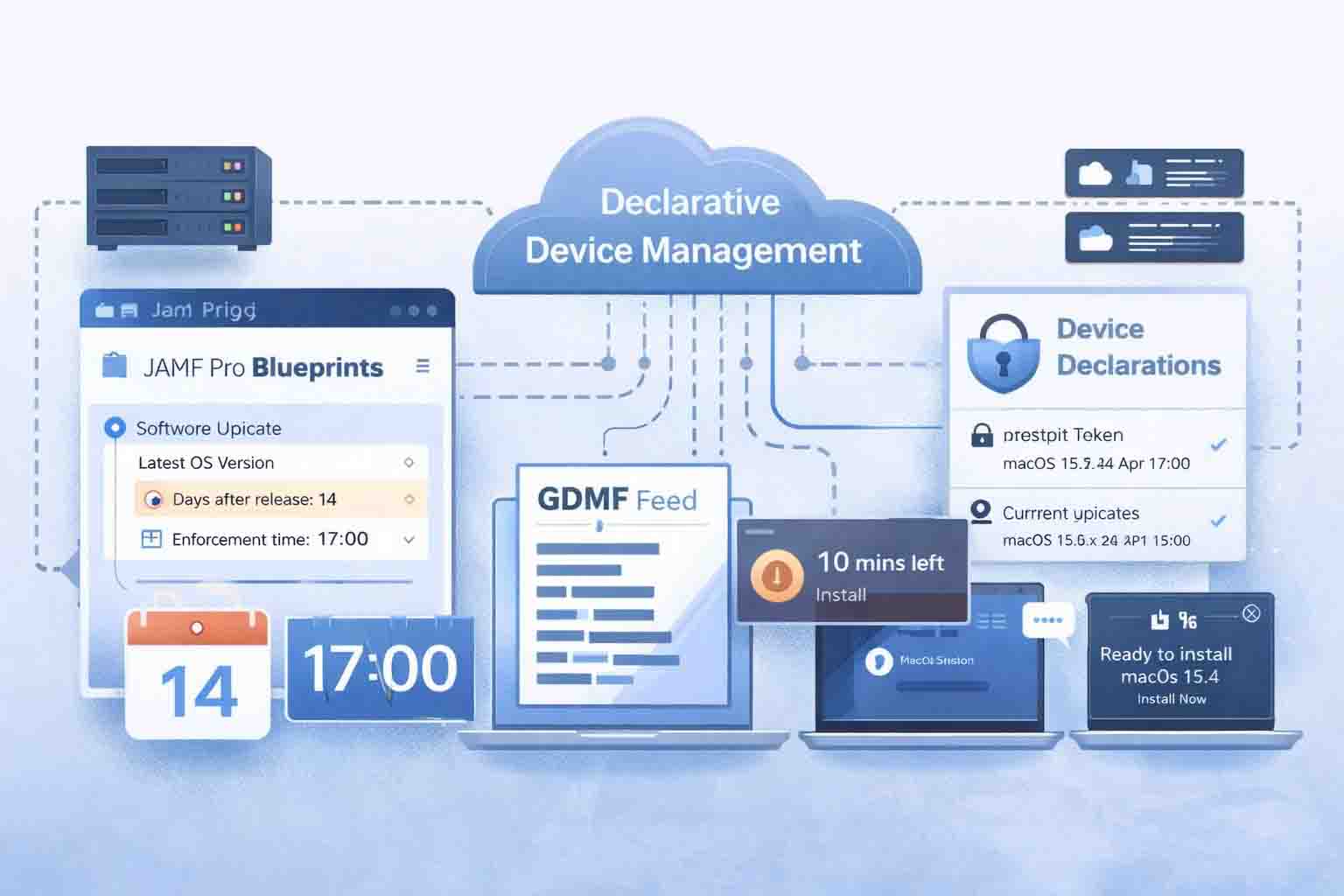
Software update management changed fundamentally when Apple introduced Declarative Device Management. Instead of MDM servers pushing commands and hoping devices comply, DDM declares a desired state and devices autonomously maintain it. JAMF Pro Blueprints implements this through what they call "set it and forget it" enforcement, where administrators configure a rolling policy once and the system handles every future update automatically.
This article covers how that works: the data flows, the deadline math, the user-facing behavior, and the failure modes you need to understand before deploying this to production.
Requirements
DDM-based software updates require:
- macOS 14+ or iOS/iPadOS 17+ for enforcement declarations (earlier versions fall back to legacy MDM commands)
- Supervised devices enrolled via ADE or Device Enrollment
- JAMF Pro Cloud with Blueprints enabled (Standard or Premium Cloud tiers; Premium Cloud Plus running on AWS GovCloud does not support Blueprints)
- Bootstrap token escrowed for Apple Silicon Macs (required for unattended installs)
Devices running older operating systems can still receive software update MDM commands through JAMF Pro's traditional Managed Software Updates feature, but they cannot use the DDM declaration workflow described here.
How GDMF Powers the System
The entire workflow depends on Apple's Global Device Management Framework feed, available at https://gdmf.apple.com/v2/pmv. This JSON endpoint provides every MDM vendor with a canonical list of available updates, eliminating the legacy approach where MDM servers queried individual devices for their available updates.
Why GDMF Exists
Before GDMF, the update workflow required multiple round trips:
- MDM sends
ScheduleOSUpdateScancommand to device - Device scans for updates
- MDM sends
AvailableOSUpdatesquery - Device returns its available updates
- MDM selects a version and sends
ScheduleOSUpdate
This created problems. Different devices reported different available updates. Product keys varied by hardware. MDM had to track scan state per device. The process was slow and unreliable—one JAMF Nation community member reported legacy MDM update commands failing roughly 30% of the time in their environment, a figure that aligns with broader Mac Admins community discussions about ScheduleOSUpdate reliability on macOS.
GDMF eliminates steps 1-4 entirely. The MDM queries Apple directly for all available updates and their hardware compatibility, then sends the appropriate command immediately.
GDMF Response Structure
The GDMF response contains three arrays:
PublicAssetSets: All releases available to the general public. This is what users see when they check Software Update manually.
AssetSets: A subset of PublicAssetSets containing releases that MDM can push to supervised devices. Before macOS 15, enforcement declarations could only target versions in this list.
PublicRapidSecurityResponses: Current RSR releases (the lettered versions like 14.4.1(a)).
Each entry includes:
{
  "ProductVersion": "15.3",
  "Build": "24D5055d",
  "PostingDate": "2025-01-15",
  "ExpirationDate": "2025-07-15",
  "SupportedDevices": [
    "Mac15,3",
    "Mac15,6",
    "Mac15,8",
    "Mac15,10",
    "Mac15,11",
    "Mac16,1"
  ]
}
The SupportedDevices array contains Apple model identifiers (the ProductName value from DeviceInformation responses), allowing the MDM to determine which updates apply to which hardware without querying each device.
Expiration Dates
The ExpirationDate field defines when Apple's signing servers will stop signing that update. An expired update cannot be installed on any device. Apple typically sets expiration dates 180 days after PostingDate, though they can extend these when subsequent updates are released.
This matters for "Specific OS version" enforcement. If you target a version that expires before your deadline, devices will fail to update and report errors. The "Latest OS version" mode avoids this problem by always targeting current releases.
GDMF Network Requirements
Devices must reach GDMF to verify update eligibility. Your network must allow traffic to:
gdmf.apple.com(update feed)mesu.apple.com(metadata)swscan.apple.com(scan service)swdist.apple.com(distribution)swdownload.apple.com(download)swcdn.apple.com(CDN)oscdn.apple.com(OS content)
If devices cannot reach these endpoints, update downloads fail silently. The declaration remains active, notifications appear, but the actual download never completes.
JAMF Pro's GDMF Integration
JAMF Pro polls the GDMF feed periodically. When Apple publishes a new release and updates the feed, JAMF Pro detects it and recalculates enforcement deadlines for all devices in scope of a "Latest OS version" Blueprint.
Based on community testing documented by ModTitan, this process takes approximately four hours from Apple's publication to JAMF Pro deploying updated declarations. The delay exists because JAMF Pro batches these calculations rather than triggering immediately on every GDMF change.
This timing matters operationally. If Apple releases a critical security update at 10 AM Pacific, your devices will not receive new declarations until roughly 2 PM Pacific at earliest. For organizations with aggressive patching SLAs, this represents a minimum latency floor you cannot reduce through configuration.
The Two Enforcement Modes
Blueprints offer two approaches to software update enforcement:
Specific OS Version and Time
This mode targets a single version with a fixed deadline. You specify:
- Target OS version (e.g., 15.3)
- Enforcement date and time (absolute, not relative)
The device must install that exact version by that exact time. This approach requires manual Blueprint updates for every new release. Use it when you need precise control over exactly which version deploys and when.
Latest OS Version (Set It and Forget It)
This mode automatically enforces whatever the current release is, using a rolling deadline calculated from the release date. You specify:
- Days after release before enforcement (1-90)
- Time of day for enforcement (local time on device)
The system handles version targeting and deadline calculation automatically. Once configured, you never touch it again unless you want to change your enforcement window.
Deadline Calculation Logic
The "Latest OS version" mode calculates enforcement deadlines using a formula based on GDMF data:
enforcement_date = PostingDate + configured_delay_days
Where PostingDate comes directly from the GDMF feed entry for the relevant update.
Worked Example
You configure a Blueprint with:
- Enforcement type: Latest OS version
- Days after release: 14
- Local enforcement time: 17:00
Apple releases macOS 15.3 on January 15, 2025. The GDMF entry shows PostingDate: 2025-01-15. Within approximately four hours, JAMF Pro detects the new release and calculates:
enforcement_date = 2025-01-15 + 14 days = 2025-01-29 at 17:00 local time
The declaration sent to devices specifies that exact target version (15.3) and deadline (January 29, 17:00 local).
On January 29 at 17:00 in each device's local timezone, any device still running a version older than 15.3 will enforce the update.
Late Devices
When a device receives a declaration after the calculated deadline has already passed, enforcement happens immediately at the configured time on the day of receipt.
If a device in the example above first contacts JAMF Pro on February 5, 2025, the deadline has already passed. The device will enforce the update at 17:00 local time on February 5, not retroactively on January 29.
This behavior matters for devices that were offline, powered down, or newly enrolled. They catch up on the day they receive the declaration, not on the original deadline.
Mid-Cycle Releases
When Apple releases a new version before the previous deadline arrives, JAMF Pro recalculates and redeploys declarations.
Scenario: Your fleet is approaching a January 29 deadline for 15.3. On January 22, Apple releases 15.3.1. JAMF Pro will:
- Detect the new GDMF entry (within ~4 hours)
- Calculate a new deadline: January 22 + 14 = February 5
- Deploy new declarations targeting 15.3.1 with the February 5 deadline
The original 15.3 deadline is abandoned. Devices that already updated to 15.3 will receive a new declaration for 15.3.1. Devices that have not yet updated skip 15.3 and go directly to 15.3.1.
This behavior prevents "version stacking" where devices might need to install multiple updates in sequence, but it also means rapid-fire Apple releases effectively extend your patching window.
The Edge Case of Stale Versions
If you use "Specific OS version" mode and target a version that Apple has removed from GDMF (expired or superseded), the device cannot install it. The declaration remains active, the deadline arrives, but the update fails.
The device will report an error status. You will need to update the Blueprint to target a current version.
This is why "Latest OS version" mode is preferable for ongoing maintenance. It cannot target unavailable versions by design.
Updates vs Upgrades
Apple distinguishes between minor updates (15.2 → 15.3) and major upgrades (14.x → 15.0). This distinction affects both legacy MDM commands and DDM declarations.
Legacy MDM Behavior
In the legacy ScheduleOSUpdate command workflow:
InstallForceRestartworks only for minor updates (same major version)InstallASAPworks for both minor updates and major upgradesMaxUserDeferralsworks only withInstallLaterand only for minor updates
Major upgrades require the full macOS installer (InstallAssistant.app) which can only be invoked via InstallASAP. Attempting to force-restart a major upgrade via MDM fails silently.
DDM Behavior
DDM software update declarations handle both updates and upgrades through the same mechanism. You specify the target version; the device determines whether it's an update or upgrade and uses the appropriate installation path.
For major upgrades, the device must download the complete installer (12-14GB typically), which takes longer than minor updates. The declaration deadline logic does not distinguish between these cases. If your deadline is tight and the device has slow network connectivity, a major upgrade may not complete in time.
Recommendation: If you expect major upgrades in your environment, consider longer enforcement delays (21+ days) to account for download times, or use "Specific OS version" mode with a manually calculated deadline that accounts for the larger download.
Pre-Enrollment Minimum OS Enforcement
Separate from the ongoing software update workflow, ADE enrollment can enforce a minimum OS version before the device completes enrollment.
When a device reaches the Remote Management screen in Setup Assistant, it sends a MachineInfo request to JAMF Pro. This request includes:
MDM_CAN_REQUEST_SOFTWARE_UPDATE: Boolean indicating DDM software update support (true on macOS 14+, iOS 17+)OS_VERSION: Current installed versionBUILD_VERSION: Current build number
JAMF Pro compares the device's version against your configured minimum. If the device is below the minimum:
- JAMF Pro responds with HTTP 403
- Response body contains error code
com.apple.softwareupdate.requiredand target version - Device displays an update prompt to the user
- Device downloads and installs the update
- Device restarts and returns to Setup Assistant
- Device sends another
MachineInforequest with the new version - If now compliant, enrollment proceeds
The Unavailable Version Problem
A documented issue (Apple FB13691581): if you specify a minimum version that is not currently available in GDMF for that device, the enrollment fails.
Example: You require macOS 14.3. A new Mac ships with 14.2.1. Apple has released 14.4.1, but 14.3 is no longer available in GDMF. The device attempts to update to 14.3, fails because Apple is not signing 14.3 anymore, and the user sees "System update could not be installed" repeatedly.
Workarounds:
- Require "latest minor version" rather than a specific version (some MDM vendors support this)
- Monitor GDMF and update your minimum version requirement when Apple releases new versions
- Use a range (e.g., require 14.0 minimum) and handle specific version compliance post-enrollment
This is a limitation of Apple's implementation, not JAMF Pro specifically.
Declaration Lifecycle on the Device
When a device receives a software update enforcement declaration, it appears in System Settings > General > Device Management > MDM Profile > Device Declarations (macOS) or Settings > General > Device Management > MDM Profile > Device Declarations (iOS).
The declaration shows:
- Target version
- Deadline date and time
- Details URL (if configured in Blueprint)
Declaration Persistence
The declaration persists until one of these conditions:
- The device installs the target version (declaration clears automatically)
- A new declaration supersedes it (old declaration replaced)
- The device leaves the Blueprint's scope (declaration removed)
- The Blueprint is deleted or the software update component is removed
If you navigate to Device Declarations on a fully-updated device in scope of a "Latest OS version" Blueprint, you may see nothing. This is expected. The declaration only appears when the device needs an update. Once current, it clears. The next time Apple releases an update, a new declaration will appear.
Multiple Declarations
If multiple configurations are present with different target versions, the device processes the one with the earliest deadline first. After updating, the device reprocesses remaining declarations and activates the next one in chronological order.
If declarations target the same deadline but different versions, behavior is undefined. Avoid this by ensuring only one software update Blueprint applies to each device.
User Experience Timeline
DDM software updates follow Apple's prescribed notification cadence. Understanding this helps set end-user expectations and reduces helpdesk tickets.
Initial State
When the declaration activates, the device:
- Downloads the update in the background (on Wi-Fi, or with user confirmation on cellular)
- Prepares the update (stages files, verifies signatures)
- Displays notification informing user of the deadline
The user sees the deadline in System Settings > Software Update. They can install immediately or wait.
Notification Cadence (Default)
Notification frequency increases as the deadline approaches:
More than 24 hours before deadline:
- Periodic notifications (Apple does not document exact frequency)
- User can dismiss notifications
- "Install", "Try Tonight", "Remind Me Later" options available
Within 24 hours:
- Hourly notifications
- Do Not Disturb is bypassed to ensure visibility
- "Install" and "Install Tonight" options (no "Remind Me Later")
Final hour before deadline:
- Notifications at 60, 30, and 10 minutes
- User can still defer within the hour
One minute before deadline:
- Final notification
- No deferral option
- Countdown to forced restart
Reduced Notification Mode
For macOS 15+, iOS 18+, iPadOS 18+, and tvOS 18.4+, the Notifications key in the declaration can suppress the gradual notification ramp-up. When set to show only the 1-hour warning and restart countdown:
- No notifications until 60 minutes before deadline
- User sees final hour countdown only
This is useful for:
- Kiosk devices where no user attends to notifications
- Environments where notification fatigue creates support overhead
- Deployments where users have been informed through other channels
The tradeoff: end users get minimal warning before forced restart. Use only when appropriate for your environment.
Past Due Behavior
If the device misses the deadline (powered off, insufficient battery, no network connectivity), DDM handles this autonomously:
- Device reconnects and detects the missed deadline
- Downloads and prepares the update if not already staged
- Displays notification that the update is past due
- Attempts installation within 1 hour
- If interrupted again (user force-quits dialog, insufficient battery, network loss), the cycle repeats at next opportunity
This self-healing behavior is a key DDM advantage over legacy MDM commands. Legacy commands could fail with no retry mechanism, requiring administrators to resend commands manually.
Installation Authorization
To initiate and authorize the update from a notification or from Settings:
macOS:
- User is prompted for their password
- Alternatively, if bootstrap token is escrowed, the device can authorize without user interaction
iOS/iPadOS:
- User is prompted for their passcode
- If no passcode is set, the device installs automatically with no prompt
Force Quit Behavior
When the deadline arrives on macOS:
- All open apps are force quit (regardless of unsaved documents)
- The device restarts immediately
This can cause data loss in apps that do not auto-save. Users should understand this before deadline enforcement. Some organizations send warning emails 24-48 hours before known deadlines to prompt users to save work.
Bootstrap Tokens and Apple Silicon
On Intel Macs, MDM-initiated updates could proceed without user credentials because FileVault unlock happened via the Recovery Key or institutional recovery methods.
Apple Silicon changed this. Software updates require Secure Enclave authorization. The sealed system volume cannot be modified without cryptographic approval. For unattended updates (where no user is present to enter credentials), the bootstrap token provides this authorization.
What the Bootstrap Token Does
The bootstrap token is a cryptographic credential that allows MDM to authorize system changes that would otherwise require user authentication:
- Software updates
- Kernel extension loading (legacy)
- System extension approval
- Secure Token creation for additional users
Without an escrowed bootstrap token, software updates on Apple Silicon Macs prompt the user for their password, even if the deadline has passed. The update still happens, but it requires user presence.
Escrowing the Bootstrap Token
The bootstrap token escrows automatically if two conditions are met:
- The MDM profile includes
com.apple.mdm.bootstraptokenin theServerCapabilitiesarrayJAMF Pro handles this automatically for ADE enrollments. - A Secure Token-enabled user logs in after enrollmentThe first user created during Setup Assistant receives a Secure Token automatically. Upon their first login after MDM enrollment completes, macOS generates the bootstrap token and sends it to JAMF Pro via the
SetBootstrapTokenRequestcheck-in.
Verifying Bootstrap Token Status
In JAMF Pro: Check the computer inventory record under "Security" for Bootstrap Token Escrowed status.
On the device:
sudo profiles status -type bootstraptoken
Expected output for a properly escrowed token:
Bootstrap Token escrowed to server: YES
If the output shows "NO", the token is not escrowed. Common causes:
- User has not logged in since MDM enrollment completed
- The MDM profile does not include bootstraptoken capability (rare with JAMF Pro)
- The user who logged in does not have a Secure Token
Recovering Missing Bootstrap Tokens
If a device lacks an escrowed bootstrap token:
- Have a Secure Token-enabled user log in
- The system should automatically attempt to escrow the token
- If it does not, you can force generation with:
sudo profiles install -type bootstraptoken
This prompts for the current user's password and escrows the token.
For devices where no user has a Secure Token (edge case from manual enrollment workflows), you need to grant Secure Token to a user first. This typically requires knowing the password of an existing Secure Token holder, or in some cases, erasing and re-enrolling the device.
Interaction with Deferrals
Deferrals and enforcement are independent but related settings. Both are configured via the com.apple.configuration.softwareupdate.settings declaration.
Deferrals control what the user sees in Software Update. A 14-day deferral means the user will not see a new release in System Settings > Software Update until 14 days after PostingDate.
Enforcement mandates installation by a deadline.
Combining Deferrals and Enforcement
You can configure both. Example scenario:
- Deferral: 7 days
- Enforcement: 14 days after release
Day 1-7: User sees no update (deferred). If they check System Settings > Software Update, it shows "macOS is up to date."
Day 8-13: User sees the update available. They can install voluntarily. Notifications begin based on the declaration's deadline.
Day 14: Enforced installation occurs at configured time if user has not already updated.
The Deferral/Enforcement Mismatch Problem
If your enforcement deadline is shorter than your deferral period, the user may go from "I see no update" directly to "I'm being forced to update" with zero opportunity for voluntary action.
Example of what NOT to do:
- Deferral: 14 days
- Enforcement: 7 days
Day 1-7: User sees no update available (deferred). Day 7: Enforcement deadline arrives. User has never seen the update in System Settings. Suddenly they receive "Update past due, installing within 1 hour."
This creates a poor user experience and generates helpdesk tickets.
Recommendation: Enforcement delay should always be >= deferral period. A sensible pattern:
- Deferral: 7 days (users see updates one week after release)
- Enforcement: 14 days (users have one week to install voluntarily before enforcement)
Deferral Limits
Apple allows deferrals from 1 to 90 days. The same range applies to enforcement delays in JAMF Blueprints.
Organizations with strict security requirements often use shorter windows (7-day deferral, 14-day enforcement). Organizations prioritizing user autonomy may use longer windows (14-day deferral, 30-day enforcement).
There is no single correct answer. Balance your security posture against user disruption tolerance.
Status Reporting and Monitoring
DDM devices report status back to JAMF Pro through subscribed status items. The device sends a StatusReport to JAMF Pro:
- When a ManagementStatusSubscriptions declaration becomes active
- When a subscribed status item changes value
- Every 24 hours regardless of changes
Relevant Status Items for Software Updates
operating-system-version: Current OS versiondevice.operating-system-supplemental-extras: RSR version if applicablesoftwareupdate.install-reason: Why the last update occurred (user-initiated, automatic, or MDM-enforced)
The softwareupdate.install-reason dictionary is useful for compliance reporting. If you need to prove updates were MDM-enforced rather than user-initiated, this status item provides that data.
Reporting Limitations in JAMF Pro
JAMF Pro's reporting for DDM software updates is less granular than traditional MDM commands. Current limitations:
No declaration status visibility: You cannot easily query "how many devices have pending declarations" or "which devices are past their deadline but have not updated." The device either reports its current OS version or it does not.
No error detail in standard views: If a declaration fails (network timeout, insufficient space, expired version), the error appears in the device's local status report but may not surface clearly in JAMF Pro's interface.
No command queue visibility: Unlike legacy MDM commands, you cannot see a queue of pending declarations or their delivery status.
Workarounds
Smart Groups: Create groups based on OS version criteria.
Examples:
- "macOS < 15.3" identifies devices that have not reached your target
- "macOS >= 15.3" confirms devices that are current
- Combine with "Last Check-in" to identify devices that may be offline
Extension Attributes: Query local state. The declaration deadline lives in a plist at an undocumented location:
#!/bin/bash
# Retrieves DDM software update state if present
# WARNING: This file location is undocumented by Apple and may change
# between macOS versions. Test before deploying widely.

PLIST_PATH="/private/var/db/softwareupdate/SoftwareUpdateDDMStatePersistence.plist"

if [[ -f "$PLIST_PATH" ]]; then
    /usr/bin/plutil -convert xml1 -o - "$PLIST_PATH"
else
    echo "<result>No DDM software update state found</result>"
fi
This extension attribute returns the raw plist content, which includes target version and deadline information. You can parse this for reporting, but be aware the file location and format may change without notice.
Scheduled Inventory Updates: Force inventory collection on a schedule and compare OS versions against your target. This provides point-in-time compliance data but cannot show real-time enforcement status.
Conflict with Legacy Profiles
A common migration issue: devices have both a Blueprints software update declaration and a legacy configuration profile managing the same settings.
What Constitutes a Conflict
DDM declarations and MDM profiles can conflict when they attempt to manage the same setting. For software updates, conflicts can occur with:
Legacy restriction profiles containing:
com.apple.SoftwareUpdatepayloadscom.apple.applicationaccesswithforceDelayedSoftwareUpdatesorenforcedSoftwareUpdateDelaykeys- Managed preferences targeting
com.apple.SoftwareUpdate
Legacy software update profiles containing:
- Software update deferral settings
- Beta program enrollment settings
- Automatic update behavior settings
Conflict Resolution Behavior
When declarations and profiles conflict:
- DDM declarations generally take precedence over MDM profiles for settings they manage
- The device may report errors in status reports
- Behavior can be unpredictable
The official guidance is simple: do not manage the same setting via both mechanisms.
Pre-Migration Audit
Before enabling Blueprints software updates, audit your existing configuration profiles:
- In JAMF Pro, go to Computers > Configuration Profiles
- Search for profiles containing "Software Update", "Restrictions", or "Application Access"
- Review each profile's payloads
- Document which devices receive each profile
- Remove or modify profiles that will conflict with Blueprints
Specifically, remove any profiles containing:
- Software Update deferral settings (move these to Blueprints)
forceDelayedSoftwareUpdatesrestrictions (move to Blueprints)- Managed preferences for
com.apple.SoftwareUpdate
You can maintain separate restriction profiles for non-update settings (App Store restrictions, etc.) without conflict.
Rapid Security Responses
RSRs (the lettered versions like 14.4.1(a)) are listed in the PublicRapidSecurityResponses GDMF array. They can be enforced via the same declaration mechanism as regular updates.
How Blueprints Handle RSRs
If your Blueprint enforces "Latest OS version" and Apple releases an RSR, JAMF Pro will enforce it using the same delay calculation. The RSR appears as a new GDMF entry with its own PostingDate, and JAMF Pro calculates the deadline accordingly.
RSR User Visibility
The RapidSecurityResponse dictionary in the settings declaration controls whether RSRs are offered to users independently of enforcement:
- If
Enableistrue(default), users see RSRs in Software Update and can install them voluntarily - If
Enableisfalse, users do not see RSRs, but you can still enforce them via declarations
When enforcing RSRs through declarations, some organizations hide them from the user's Software Update UI to prevent confusion about what is managed versus voluntary.
RSR Rollback
RSRs can be rolled back by users (unlike regular OS updates). The settings declaration can disable this:
- If
Allowistrue(default), users can remove an installed RSR - If
Allowisfalse, the RSR cannot be removed
If you enforce RSRs and want to ensure they stay installed, set rollback to disallowed.
Common Issues and Resolutions
Declaration Delivered But Device Not Updating
Check prerequisites:
- Device meets OS requirements (macOS 14+ / iOS 17+)
- Device is supervised
- Bootstrap token escrowed (Apple Silicon)
Check conditions: 4. Sufficient storage for update download (check available space) 5. Network connectivity to Apple's CDN (test swdownload.apple.com reachability) 6. Battery level sufficient (>50% for laptops, or plugged into power)
Check declaration: 7. Verify declaration appears in Device Declarations on the device 8. Verify target version is available in GDMF (not expired)
Deadline Arrived But Nothing Happened
The device may have conditions preventing the restart:
- Battery below threshold
- Open apps with unsaved documents blocking restart
- Network interruption during download phase
- FileVault recovery key rotation in progress
DDM will retry autonomously when conditions allow. If the device remains non-compliant for an extended period, investigate locally.
Updates Enforcing Earlier Than Expected
Verify your delay calculation. Remember: enforcement_date = PostingDate + delay.
Common miscalculation: If Apple releases on January 1 and you have a 7-day delay, enforcement is January 8, not January 14.
Also check:
- Multiple Blueprints with overlapping scope (most aggressive deadline wins)
- Time zone confusion (enforcement time is local to the device, not the server)
Updates Enforcing Later Than Expected
Check for:
- GDMF propagation delay (~4 hours from Apple release to JAMF Pro detection)
- Device check-in delay (declaration deploys at next check-in)
- Network issues preventing declaration delivery
Users Getting No Warning
If using the "Notifications 1 hour before" setting, this is expected behavior. Users see nothing until the final hour.
If not using that setting:
- Check that notifications are not disabled by user preference
- Check that Focus mode is not suppressing them (DDM should bypass Do Not Disturb in final 24 hours, but verify)
- Check that the notification service is functioning
Device Shows Stale Declaration
Declarations update within ~4 hours of GDMF changes, but only on next device check-in. A device that has been offline may show stale declaration data.
Force inventory update:
- In JAMF Pro: Actions > Send Remote Commands > Update Inventory
- Wait for device check-in
- Verify declaration updated
"Software Update Required" Error During ADE Enrollment
This occurs when the specified minimum OS version is not available in GDMF for that device. See the "Pre-Enrollment Minimum OS Enforcement" section above for workarounds.
Bootstrap Token Not Escrowing
Common causes:
- No Secure Token-enabled user has logged in since enrollment
- MDM profile missing bootstraptoken capability (rare with JAMF Pro)
- Network issue preventing check-in
Resolution:
- Have a Secure Token user log in
- Wait 5 minutes for background escrow
- Verify with
sudo profiles status -type bootstraptoken - If still not escrowed, run
sudo profiles install -type bootstraptoken
Recommended Configuration
Based on operational experience, these settings balance security needs with user experience for most enterprise environments:
Enforcement type: Latest OS version
Rolling enforcement eliminates manual maintenance. You configure once and never touch it again unless you want to change your window.
Days after release: 14 days
Two weeks gives users sufficient time to update voluntarily before enforcement. Organizations with stricter security requirements may use 7 days. Organizations prioritizing user autonomy may use 21-30 days.
Local enforcement time: 17:00 or 18:00
Choose a time outside core business hours. Early evening works for many organizations: late enough that most users have wrapped up focused work, early enough that IT staff are still available if issues arise. Avoid midnight; if something fails, no one is awake to troubleshoot.
Deferrals: 7 days (with 14-day enforcement)
Users see updates one week after release. They have one additional week to install voluntarily before enforcement. This provides a balance between "users have agency" and "updates actually happen."
Notifications: Default (all notifications)
Keep default unless you have specific kiosk/signage use cases where notification fatigue is a documented problem.
RSR settings: Enable RSRs, enforce via declaration, disable rollback
RSRs contain critical security fixes. Enforce them on the same schedule as regular updates, and prevent users from removing them.
Verification Steps
After deploying a software update Blueprint:
1. Confirm scope: Check that target Smart Groups include expected devices. Verify scope criteria match your intended audience.
2. Verify declaration delivery: On a test device, navigate to:
- macOS: System Settings > General > Device Management > MDM Profile > Device Declarations
- iOS: Settings > General > Device Management > MDM Profile > Device Declarations
The software update declaration should appear with target version and deadline.
3. Check deadline calculation: Verify the deadline matches your expected PostingDate + delay calculation. Account for timezone (deadline is in device local time).
4. Test enforcement on a pilot device: Allow a test device to reach its deadline. Confirm the update installs as expected. Verify user experience matches documentation.
5. Monitor status reports: After enforcement, verify JAMF Pro inventory shows the updated OS version. Check that the declaration clears from the device after successful update.
6. Test failure scenarios: Simulate a missed deadline (power off device before deadline, power on after). Verify the device enters "past due" state and updates within expected timeframe.
What This Does Not Cover
Blueprints software update declarations handle OS updates only. They do not manage:
- Safari updates (automatic background process, separate from OS updates)
- XProtect/MRT updates (automatic on macOS, not MDM-controlled)
- App Store application updates (use MDM app update commands or user-initiated)
- Third-party application updates (use JAMF Pro Patch Management or third-party tools)
- macOS installer caching (not applicable to DDM flow; the device downloads directly from Apple)
For application patching, continue using JAMF Pro's traditional Patch Management policies or third-party tools like AutoPkg and patch management frameworks.
Summary
The "set it and forget it" workflow represents a significant operational improvement over legacy approaches. Once configured:
- JAMF Pro monitors GDMF automatically
- Deadlines calculate from Apple's release dates
- Declarations deploy without admin intervention
- Devices enforce autonomously, including retry on failure
The tradeoffs are reduced visibility (fewer granular status reports) and the ~4 hour latency floor for new releases. For most organizations, the reduction in manual maintenance justifies these limitations.
Next Steps
- Audit existing profiles: Identify and document all configuration profiles managing software update settings. Plan removal or modification before enabling Blueprints.
- Verify bootstrap token status: Run an inventory report on Apple Silicon Macs to identify devices without escrowed bootstrap tokens. Remediate before enforcement begins.
- Create test Blueprint: Build a software update Blueprint targeting a test Smart Group. Verify declaration delivery and deadline calculation before broad deployment.
- Document user communication: Prepare end-user documentation explaining the enforcement behavior, particularly the forced restart. Distribute before enforcement affects production devices.
- Configure monitoring: Create Smart Groups for OS version compliance. Configure alerts for devices that remain non-compliant past expected windows.
- Deploy to pilot group: Expand Blueprint scope to a pilot group. Monitor for issues through at least one enforcement cycle before organization-wide deployment.